Print Job E-mail Notifications — Setup in O&K Print Watch
How to Receive Notifications for Every Printed Document
O&K Print Watch not only analyzes printer usage statistics, but also allows you to receive instant e-mail notifications for every new print job.
This is useful when you need to quickly know which document was printed, who printed it, how many pages were used, which printer was used, and how much it cost.
- notifications are sent after every print job;
- you can monitor all printers or only selected devices;
- filters are available by document name, number of pages, and print mode;
- the e-mail includes the user, document name, pages, paper size, printer, and cost.
1. Open the O&K Print Watch Web Interface
E-mail notifications are configured via the O&K Print Watch web server. Open the following address in your browser:
http://PRINT_SERVER_NAME:8989
8989 is the default port. If you changed the web interface port, use your custom port number.
Then go to: Settings → E-mail Reports.
2. Create a New E-mail Report
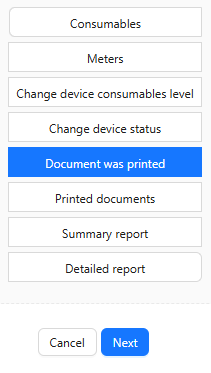
Click the add button and select the report type: Document was printed.
This report type is used specifically for print job notifications and printer monitoring alerts.
3. Configure Notification Conditions
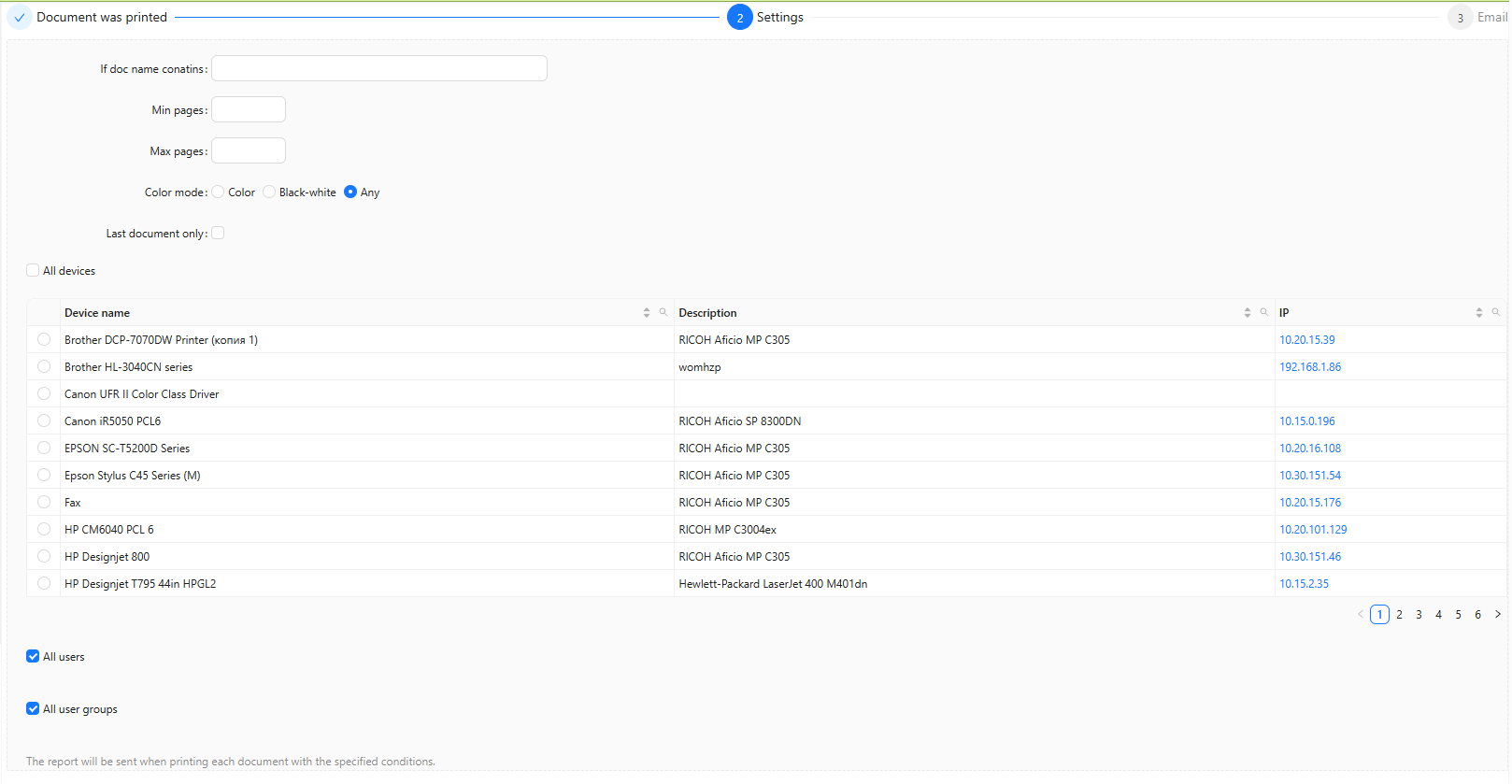
On the next step, you can define conditions for sending notifications. If no conditions are specified, O&K Print Watch will send an e-mail notification for every printed document.
You can also select specific printers, users, or user groups. For example, you can send alerts only for an accounting printer or only for print jobs created by a specific department.
4. Enter the Recipient E-mail Address
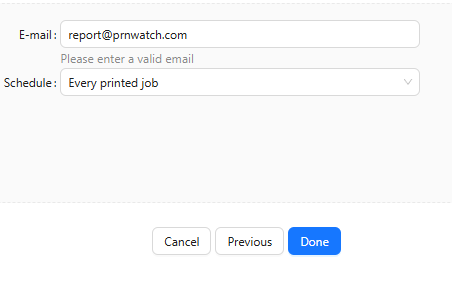
On the final step, enter the recipient’s e-mail address and select: Every printed job.
Then click Done. E-mail notifications for every printed document are now enabled.
What Information Is Included in the E-mail
Once a document is printed, the recipient receives an e-mail with detailed information about the print job.
- user name;
- document name;
- number of pages;
- print mode;
- paper size;
- printing cost;
- printer used.
This makes it easy to track printed documents without manually checking print queues, logs, or reports.
Who Benefits from Print Job Notifications
Quick Setup Summary
- Open http://PRINT_SERVER_NAME:8989.
- Go to Settings → E-mail Reports.
- Create a new report.
- Select Document was printed.
- Leave conditions empty to receive notifications for all printed documents.
- Enter the recipient e-mail address.
- Select Every printed job.
- Click Done.
FAQ
Can I receive an e-mail notification for every printed document?
Yes. Create an e-mail report of the Document was printed type and select Every printed job. If no filters are set, notifications will be sent for every print job.
Can I receive notifications only for selected printers?
Yes. You can configure the report to monitor only selected printers, users, or user groups.
Can I filter notifications by document name?
Yes. Use the If doc name contains field to send alerts only for documents whose names contain specific text.
What information is included in the e-mail?
The e-mail includes the user, document name, printer, number of pages, print mode, paper size, and printing cost.
Monitor Printing in Real Time
Set up e-mail notifications, reports, cost tracking, and full control over all printers in your network.