Edit Printing Costs
In the O&K Print Watch web interface, you can view, copy, and edit printing costs for one or multiple printers. This setting is available under Printers → Printing Cost.
Cost rules are used to calculate the price of print jobs in reports. The calculation takes into account the base page cost, number of pages, number of copies, color mode, duplex printing, and the assigned paper group.
Viewing current printing costs
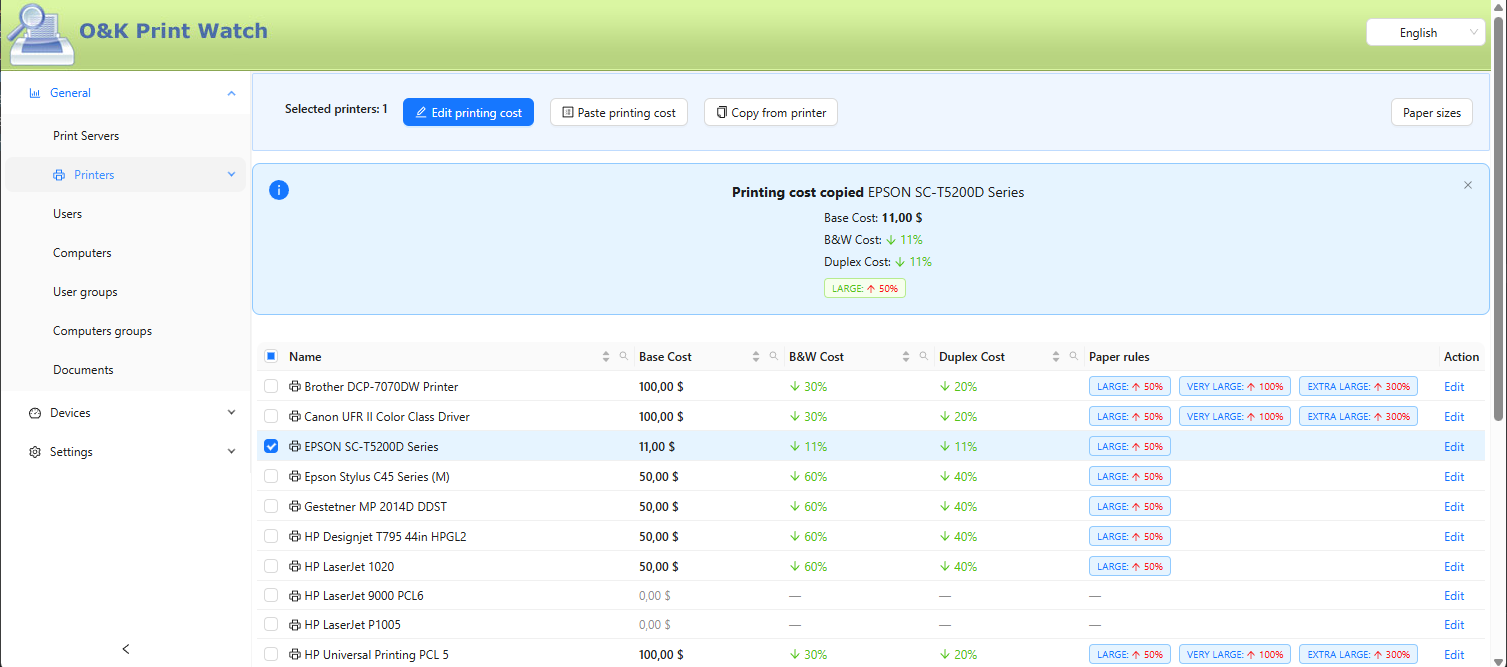
The table shows the list of printers and the current cost calculation settings for each device.
- Base cost — the basic cost of one printed page.
- B/W printing — cost adjustment for black-and-white printing.
- Duplex printing — cost adjustment for duplex printing.
- Paper — cost adjustments for individual paper groups.
- Action — opens editing for the selected printer.
If paper groups are configured for a printer, they are displayed in the table as separate labels. For example, the LARGE group may increase the cost by 50%, while EXTRA LARGE may increase it by 300%.
How printing cost is calculated
The print job cost is calculated from the number of pages, number of copies, base page cost, and the final coefficient.
The final coefficient starts at 1.0. Then cost adjustments for black-and-white printing, duplex printing, and the paper group are added to it.
For example, if the base page cost is $0.10, black-and-white printing is 30% cheaper, and duplex printing is 20% cheaper, the final coefficient for a black-and-white duplex job will be:
For a job with 5 pages and one copy, the total cost will be: 5 × 1 × $0.10 × 0.50 = $0.25.
Editing the cost of one printer
To edit the printing cost for one printer, open Printers → Printing Cost and click Edit in the row of the required printer.
- Enter the base page cost.
- Set the cost adjustment for black-and-white printing.
- Set the cost adjustment for duplex printing.
- If necessary, configure cost adjustments for paper groups.
- Click Apply.
After saving, the new rules will be used to calculate the cost of print jobs on the selected printer.
Editing costs for multiple printers
You can edit the printing cost for several printers at once. Select the required printers in the table and click Edit Cost.
If the selected printers have different values, those fields are displayed as — different values —. Before saving, you must explicitly set these fields. This prevents different existing settings from being accidentally overwritten with the same value.
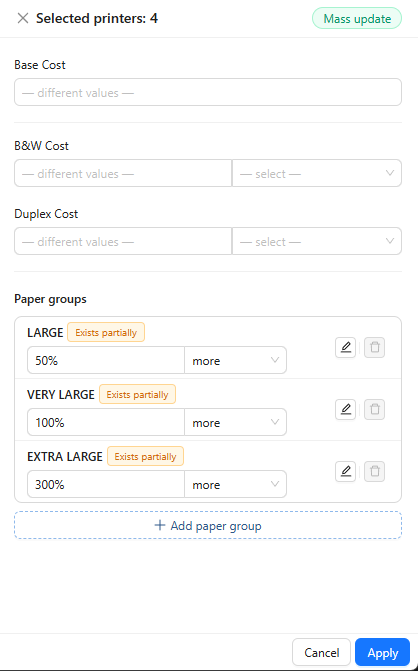
After you click Apply, the specified values will be applied to all selected printers.
Copying cost settings from one printer
If several printers should use the same cost calculation rules, you can copy the settings from one printer and paste them to other printers.
- Select one printer in the table.
- Click Copy from Printer.
- Select one or more other printers.
- Click Paste Cost.
After copying, the page shows information about the copied cost settings: the source printer name, base cost, adjustments for black-and-white and duplex printing, and paper group settings.
Copying is useful when several printers of the same model should use identical printing cost rules.
Paper groups
Paper sizes can be combined into groups. Each group can have its own printing cost adjustment.
| Paper group | Example cost adjustment | When to use |
|---|---|---|
| LARGE | 50% higher | For large paper formats. |
| VERY LARGE | 100% higher | For larger formats with higher printing cost. |
| EXTRA LARGE | 300% higher | For wide-format or non-standard printing. |
If a paper size should not change the printing cost, select Base Cost for it.
Editing paper sizes
To configure the relationship between paper sizes and paper groups, click Paper Sizes.
The opened window shows a list of paper sizes and the group assigned to each size. For each paper size, you can select:
- Base Cost — no additional cost adjustment is applied.
- An existing paper group, such as LARGE, VERY LARGE, or EXTRA LARGE.
- A new paper group, if no suitable group exists yet.
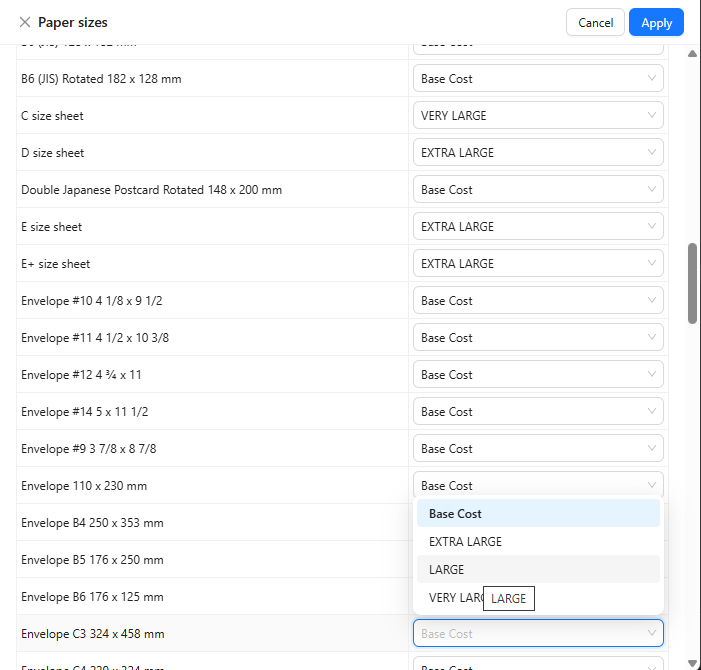
If you create a new paper group, you can define a separate printing cost adjustment for it. After that, all paper sizes assigned to this group will use the specified cost adjustment.
After changing the groups, click Apply.
How cost adjustments work
Cost adjustments are specified as percentages relative to the base page cost.
| Value | Meaning | Example with a $0.10 base cost |
|---|---|---|
| 30% lower | The cost is reduced by 30%. | $0.07 per page. |
| 20% higher | The cost is increased by 20%. | $0.12 per page. |
| 0% | The cost is not changed. | $0.10 per page. |
| 100% higher | The cost is doubled. | $0.20 per page. |
Adjustments can be combined. For example, if a job is black-and-white, duplex, and printed on paper assigned to the LARGE group, all corresponding coefficients will be applied to the base cost.
Configuration recommendations
- For standard office printers, it is usually enough to set the base page cost and rules for black-and-white or duplex printing.
- For wide-format printers, configure paper groups so that large formats are calculated correctly.
- Before applying settings to multiple printers, it is convenient to configure one printer first, check the cost calculation, and then copy these settings to other printers.
- If a field is marked as — different values — during bulk editing, set it manually before saving.